Ever found your Chromebook's touchscreen acting up, making phantom selections, or simply getting in the way when you're trying to focus? You're not alone. While a touchscreen is a fantastic feature for many tasks, there are indeed compelling reasons why you might want to disable your Chromebook touchscreen input. Perhaps it's a persistent "ghost touch" malfunction, a desire to eliminate distractions during intense work, or simply a preference for traditional keyboard and mouse input. Whatever your motive, ChromeOS offers a hidden pathway to gain control over this often-overlooked feature.
It's a common misconception that if your Chromebook has a touchscreen, you're stuck with it always on. The truth is, ChromeOS doesn't provide a big, obvious "off" switch for your touch display, which can be frustrating. But fear not, this isn't a dead end. As a seasoned observer of the tech landscape, I'm here to guide you through the how and why of taking charge of your Chromebook's touch capabilities, turning a potential nuisance into a manageable choice.
At a Glance: Key Takeaways for Disabling Your Chromebook Touchscreen
- Why Disable? To fix malfunctions (like "ghost touches"), prevent accidental input, or reduce distractions for focused work.
- No Direct Setting: ChromeOS lacks an obvious on/off switch for the touchscreen in its standard settings.
- The Solution: Use a specific "Chrome Flag" to enable a keyboard shortcut for toggling touch input.
- Prerequisite: Ensure you have a functional touchpad or an external mouse connected before you begin.
- It's Reversible: You can easily re-enable the touchscreen whenever you wish.
- It's Safe: This is a software-based change and will not harm your Chromebook's hardware.
- Battery Life: Disabling the touchscreen does not significantly impact battery drain, as the digitizer remains active.
- Potential Resets: Chrome Flags are experimental; they might reset after ChromeOS updates or be restricted on managed devices.
Why Consider Disabling Your Touchscreen? More Than Just a Glitch Fix
Before we dive into the "how," let's explore the practical scenarios that lead users to seek out this lesser-known capability. Understanding the "why" can empower you to tailor your Chromebook experience precisely to your needs.
Dealing with Malfunctioning Screens: The Dreaded "Ghost Touch"
Perhaps the most urgent reason to disable your touchscreen is when it starts misbehaving. We've all seen it: phantom taps that open apps you didn't mean to, windows closing unexpectedly, or the cursor jumping around seemingly on its own. This "ghost touch" phenomenon is not only frustrating but can make your Chromebook virtually unusable. It often stems from hardware issues, manufacturing defects, or even minor pressure on the screen from a packed bag. Until you can get it repaired or replaced, disabling the touchscreen offers an immediate, temporary reprieve, allowing you to continue using your device with other input methods.
Preventing Accidental Input: A Smoother Workflow
Even a perfectly functional touchscreen can sometimes be a hindrance. Imagine you're working intently on a document, perhaps with an external monitor and keyboard, and your hand brushes against the screen, accidentally clicking on something and derailing your focus. Or maybe you're sketching with a stylus, and your palm rests on the display, causing unintended marks. Disabling the touchscreen in these situations ensures that only your intended inputs (from a mouse, touchpad, or external drawing tablet) register, leading to a much smoother and less interrupted workflow.
Boosting Focus and Productivity: Minimizing Distractions
In an increasingly distracting digital world, anything that helps you concentrate is valuable. For some, the mere presence of a touchscreen, with its temptation to tap and swipe, can be a subtle distraction, pulling attention away from the task at hand. By disabling it, you're creating a more traditional, keyboard-and-mouse-centric interaction, which many find conducive to deep work. It's about consciously removing a potential avenue for procrastination or accidental interaction, helping you stay locked into your work or study.
Enhancing Your External Setup: Chromebook as a Desktop Hub
Many users connect their Chromebooks to larger external monitors, turning them into powerful, portable desktop replacements. In such a setup, interacting with the tiny laptop screen via touch often feels redundant or awkward, especially when you have a full-sized keyboard and mouse. Disabling the touchscreen allows your Chromebook to function purely as a processing unit driving the external display, eliminating any accidental interactions with the closed or unused laptop screen.
Child-Proofing and Controlled Environments: Reducing Unintended Interactions
If you share your Chromebook with young children or use it in an environment where curious hands might accidentally tap the screen, disabling touch input can be a godsend. It ensures that kids can't inadvertently launch apps, change settings, or stumble upon inappropriate content through random pokes. It gives you more control over how others interact with your device, making it a safer and more predictable tool for everyone.
The ChromeOS Conundrum: No Simple "Off" Switch (And How We Get Around It)
Unlike many Windows laptops or dedicated tablets that offer a straightforward toggle in their settings, ChromeOS, in its standard user interface, doesn't provide an easy way to switch the touchscreen on or off. This design choice, while perhaps aimed at simplifying the user experience and promoting touch-first interaction, can be a source of frustration for those who need more granular control.
The reason for this omission likely lies in ChromeOS's philosophy of being lightweight and optimized for specific hardware configurations. Adding a universal UI toggle for a feature that's not present on all Chromebooks (some are clamshell-only, no touch) might have seemed unnecessary complexity.
However, the engineers at Google are well aware that experimental features and diagnostic tools are vital. This is where Chrome Flags come into play. Chrome Flags are experimental options and developer settings hidden deep within the browser, allowing users to test upcoming features or access debugging tools that aren't yet ready for prime time or aren't intended for the average user. Think of them as a back-end laboratory where you can flip switches for new functionalities. This is precisely where we'll find our solution to control the touchscreen.
Your Go-To Guide: Disabling Your Touchscreen with a Chrome Flag
This method is the most reliable and user-friendly way to disable and re-enable your Chromebook's touchscreen. It's essentially a hidden keyboard shortcut that you unlock via an experimental Chrome Flag.
Prerequisites First: Don't Get Stranded!
Before you begin, a crucial warning: ensure you have a functional alternative input device. This means your Chromebook's built-in touchpad must be working, or you need an external mouse connected via USB or Bluetooth. Once the touchscreen is disabled, you won't be able to interact with the screen using your fingers or a stylus, so a backup input method is absolutely essential to navigate and re-enable it if needed.
Step 1: Unearthing the Secret Setting in Chrome Flags
- Open Your Chrome Browser: Naturally, you'll start by opening Google Chrome on your Chromebook.
- Access Chrome Flags: In the address bar (where you usually type website URLs), paste the following exact command:
chrome://flags/#ash-debug-shortcuts
Then, pressEnter.
This direct link will take you right to the specific flag we need, saving you from sifting through hundreds of experimental options.
Step 2: Activating the "Debugging Keyboard Shortcuts" Flag
Once the Chrome Flags page loads, you'll see "Debugging Keyboard Shortcuts" highlighted.
- Locate the Drop-down Menu: To the right of the flag's description, there will be a drop-down menu that likely says "Default" or "Disabled."
- Select "Enabled": Click on this drop-down menu and choose "Enabled" from the options.
By enabling this flag, you're activating a set of debugging shortcuts, one of which is precisely what we need for the touchscreen.
Step 3: A Quick Reboot to Apply Changes
After you change a Chrome Flag setting, the Chromebook needs to restart to apply those changes.
- Look for the "Restart" Prompt: At the bottom right of your screen, a pop-up prompt will appear, asking you to "Restart" or "Relaunch" your Chromebook.
- Click "Restart": Select this option. Your Chromebook will quickly reboot, and all open applications will close. Don't worry, it's a normal part of the process.
Step 4: The Magic Keyboard Shortcut to Toggle Your Touchscreen
Once your Chromebook has fully restarted and you've logged back in, the debugging shortcuts are now active.
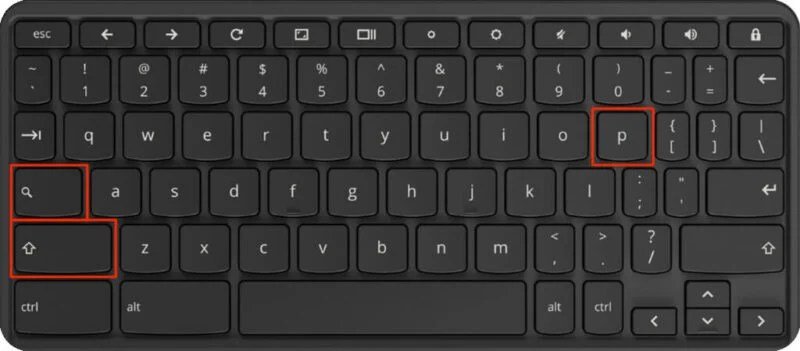
- The Toggle Combination: To disable your touchscreen, press the following three keys simultaneously:
Search + Shift + T
- The
Searchkey is usually located whereCaps Lockwould be on a standard keyboard (it often has a magnifying glass icon). - The
Shiftkey is the standard shift key. - The
Tkey is the letter 'T'.
- Confirming the Change: You won't get a big pop-up confirmation, but you'll notice immediately that your touchscreen no longer responds to your touch or stylus input. If you try to tap, nothing will happen.
What to Expect After Disabling:
- No Touch Response: Your fingers and any stylus will no longer interact with the screen, even if you put your Chromebook into tablet mode.
- Other Inputs Unaffected: Your touchpad, external mouse, and keyboard will all continue to function normally. This change is isolated to the touch digitizer.
- Software-Based, Not Permanent: This is a software override, not a hardware alteration. It's safe and entirely reversible.
Bringing It Back: Re-Enabling Your Touchscreen
There are a couple of ways to bring your touchscreen back to life, depending on why it was disabled.
Method 1: The Same Magic Toggle Shortcut
The beauty of the Search + Shift + T combination is that it's a true toggle.
- Simply Press Again: If you disabled your touchscreen using this shortcut, pressing
Search + Shift + Tagain will re-enable it. You'll instantly regain touch functionality.
This is the fastest and most convenient way to switch touch input on and off as needed.
Method 2: Disabling the Debugging Flag (If the Toggle Fails)
In rare cases, or if you're experiencing general instability, you might want to fully revert the Chrome Flag setting.
- Access Chrome Flags Again: Open Google Chrome and paste
chrome://flags/#ash-debug-shortcutsinto the address bar, then pressEnter. - Disable the Flag: Locate "Debugging Keyboard Shortcuts" and select "Disabled" from its drop-down menu.
- Reboot Chromebook: Click "Restart" or "Relaunch" when prompted.
After the reboot, not only will your touchscreen be re-enabled, but theSearch + Shift + Tshortcut will also cease to function as a toggle, as its underlying feature has been deactivated.
For the Power User: A Temporary Crosh Solution (Briefly Mentioned)
For advanced users comfortable with command-line interfaces, there's a more temporary, session-based method using Crosh (the ChromeOS Shell). This involves entering system-level commands to disable touchscreen input for the current session.
- Open Crosh: Press
Ctrl + Alt + T. - Enter Commands: From here, you would enter specific commands (e.g.,
inputcontrolcommands, though exact commands can vary and might require developer mode).
However, this method is generally not recommended for casual users. It's more complex, the commands can be obscure, and the changes typically do not persist after a reboot, meaning you'd have to re-enter them every time. For most users, the Chrome Flag method is far superior in terms of ease of use and persistence.
Critical Considerations Before You Toggle Away
While disabling your touchscreen is a safe and reversible process, there are a few important details and potential caveats you should be aware of. Being informed ensures a smoother, more predictable experience.
The "Experimental" Tag: Chrome Flags Aren't Final Features
It's crucial to remember that Chrome Flags are, by their very nature, experimental. They are not officially supported features and are primarily intended for developers or for testing new functionalities before they are fully integrated (or discarded).
- Potential Instability: While the "Debugging Keyboard Shortcuts" flag is generally stable, using any Chrome Flag carries a minor risk of unexpected behavior or conflicts with other features.
- Functionality Changes: Google could, at any time, remove, change, or rename this flag, potentially rendering this method obsolete without warning. This is rare for a utility flag like this but remains a possibility.
Always proceed with the understanding that you're venturing into a developer-focused area, even if the steps themselves are straightforward.
Battery Life Myth: Disabling Touch Doesn't Save Power
A common assumption is that turning off the touchscreen will lead to significant battery savings. Unfortunately, this is largely a myth.
- Digitizer Remains Active: When you disable touch input using the Chrome Flag, you're essentially telling the software to ignore signals from the touch digitizer. However, the digitizer itself (the layer responsible for detecting touch) remains powered on and actively scanning for input.
- Minimal Power Consumption: The power consumed by the touch digitizer and the processing of touch input is generally very small compared to other components like the screen backlight, CPU, and Wi-Fi radio. Therefore, you're unlikely to notice any measurable increase in battery life by disabling touch.
Focus on other battery-saving strategies, such as reducing screen brightness, closing unused tabs, and limiting background processes, for a more impactful difference.
Post-Update Reset: Flags Might Revert
ChromeOS updates are frequent and automatic, which is usually a good thing for security and new features. However, sometimes these updates can reset experimental Chrome Flag settings back to their default "Disabled" state.
- Be Prepared to Re-enable: If you wake up one day and find your touchscreen is suddenly active again despite having disabled it, a recent ChromeOS update is the likely culprit. Simply follow the steps in "Your Go-To Guide" section again to re-enable the "Debugging Keyboard Shortcuts" flag and then use the
Search + Shift + Ttoggle. It's a minor inconvenience but an important one to anticipate.
Managed Devices: School or Work Restrictions
If you're using a Chromebook provided by your school or workplace, it's considered a "managed device." Managed Chromebooks often have restrictions imposed by their administrators to ensure security, compliance, and consistent user experience.
- Flag Access May Be Restricted: On a managed Chromebook, your access to
chrome://flagsmight be blocked entirely, or specific flags (like the debugging shortcuts) might be grayed out and unchangeable. - Consult Your Administrator: If you find you can't access or modify Chrome Flags on a managed device, you'll need to contact your IT administrator. They might have a policy against such changes or could potentially make the adjustment for you if it aligns with their guidelines.
General Troubleshooting Tips: Update and Reboot
If you encounter any issues—perhaps the shortcut isn't working, or the touchscreen won't re-enable as expected—your first line of defense should always be the classic IT advice:
- Update ChromeOS: Ensure your Chromebook is running the latest version of ChromeOS. Go to
Settings > About ChromeOS > Check for updates. Updates often fix bugs and improve stability. - Reboot: A full restart can often clear temporary glitches. Don't just close the lid; actually select "Sign out" and then "Shut down," waiting a few moments before powering it back on.
For a broader understanding of optimizing your Chromebook's features, you might find our comprehensive guide to managing Chromebook features particularly helpful.
Beyond the Fix: Practical Scenarios Where Disabling Touch Shines
We've covered the common reasons why you might need to disable your touchscreen, particularly for troubleshooting. But beyond fixing a problem, proactively controlling this feature can genuinely enhance your computing experience in various practical scenarios.
The Artist's Canvas: Precision with Drawing Tablets
For digital artists or graphic designers using their Chromebook with a dedicated drawing tablet (like a Wacom or Huion), an active touchscreen can be more of a hindrance than a help. Accidental palm touches on the screen while focusing on the tablet can disrupt your workflow, create unwanted lines, or shift your canvas. Disabling the touchscreen ensures that your drawing tablet is the sole source of input, allowing for uninterrupted precision and focus on your digital art. It streamlines your creative process by removing potential interference.
The Focused Student or Professional: A Distraction-Free Workspace
In an academic or professional setting, deep concentration is paramount. Imagine you're writing an essay, coding a project, or analyzing data. The subtle temptation to tap or swipe, even unconsciously, can break your flow. By disabling the touchscreen, you're consciously crafting a more traditional, keyboard-and-mouse-driven interface. This small change can act as a psychological barrier, helping you maintain focus and reduce the cognitive load associated with managing multiple input methods. It's about optimizing your environment for peak productivity.
The External Display Warrior: Chromebook as a Seamless CPU
Many power users leverage their Chromebooks by connecting them to large external monitors, turning them into powerful, minimalist desktop replacements. When your primary visual interface is a 27-inch display, reaching over to tap the much smaller Chromebook screen feels awkward and inefficient. Disabling the touchscreen in this setup is a logical step. It allows your Chromebook to function purely as a processing unit, driven by your external keyboard and mouse, creating a cohesive and ergonomic desktop experience without any accidental interactions on the unused laptop screen.
Gaming on ChromeOS: Avoiding Misclicks and Enhancing Control
While not primarily a gaming machine, Chromebooks can handle a surprising number of games, especially Android titles and cloud streaming services like GeForce NOW or Xbox Cloud Gaming. In many fast-paced games, a misplaced touch on the screen can be the difference between victory and defeat. If you're using a game controller or keyboard and mouse, an active touchscreen is redundant and a potential source of frustrating misclicks. Turning it off ensures that all your inputs come from your preferred gaming peripherals, giving you more precise and reliable control over your in-game actions.
Dispelling Common Myths and Answering Your Burning Questions
Let's clear up some common misconceptions and answer the questions that frequently pop up when discussing touchscreen disablement.
"Will this damage my Chromebook hardware?"
Absolutely not. Disabling the touchscreen using the Chrome Flag method is purely a software-level change. You're simply telling the operating system to ignore input from the touch digitizer, not physically altering or damaging any hardware components. Think of it like muting your microphone – the microphone itself is still there, still receiving sound, but the software isn't passing that sound on. You can re-enable it safely at any time without any adverse effects on your hardware.
"Is the change permanent once I disable it?"
No, it's entirely reversible and not permanent. As detailed in our guide, you can re-enable your touchscreen at any point by either using the Search + Shift + T toggle shortcut again or by disabling the "Debugging Keyboard Shortcuts" flag and rebooting. The only "permanent" aspect is if you choose to keep it disabled. It's designed for flexibility, allowing you to switch touch input on and off as your needs change.
"Can I still use my Chromebook in tablet mode if the touchscreen is disabled?"
Yes, you can still physically fold your Chromebook into tablet mode if it's a convertible model. The hardware transformation still occurs. However, because the touchscreen input is disabled, you won't be able to interact with the screen using your fingers or a stylus in tablet mode. You would still need to rely on an external mouse or a connected Bluetooth keyboard to navigate ChromeOS. While technically possible, it's not a very practical or intuitive way to use your Chromebook in tablet form. The primary benefit of tablet mode (touch interaction) would be absent.
"Does disabling the touchscreen make my Chromebook faster?"
Not directly, in terms of raw processing speed. Disabling the touchscreen doesn't suddenly give your CPU more power or free up RAM. However, it can indirectly improve your perceived performance and efficiency. By eliminating accidental inputs or ghost touches, you reduce errors and interruptions, which can make your workflow feel smoother and faster. Less time spent correcting mistakes means more time spent on productive tasks. So while it won't benchmark higher, your personal experience of using the Chromebook might become more fluid and less frustrating.
Final Thoughts: Taking Control of Your Chromebook Experience
In the evolving landscape of personal computing, the ability to customize your device to fit your unique needs is invaluable. While Chromebooks are known for their simplicity and ease of use, they also hold hidden depths for those willing to explore. Learning how to disable your touchscreen, while not immediately obvious, is a prime example of taking control of your device's capabilities.
Whether you're battling a persistent hardware glitch, seeking a more focused work environment, or optimizing for an external setup, you now have the knowledge and tools to manage your Chromebook's touch input. It's a testament to the flexibility of ChromeOS, even if you have to dig a little to find the controls. Embrace this newfound ability to tailor your Chromebook, ensuring it always serves your purpose, distraction-free and perfectly functional. Your Chromebook is a versatile tool; now, you're truly the master of its every input.